DIY Personalized Christmas Ornaments with the xTool Omni O1 UV Printer
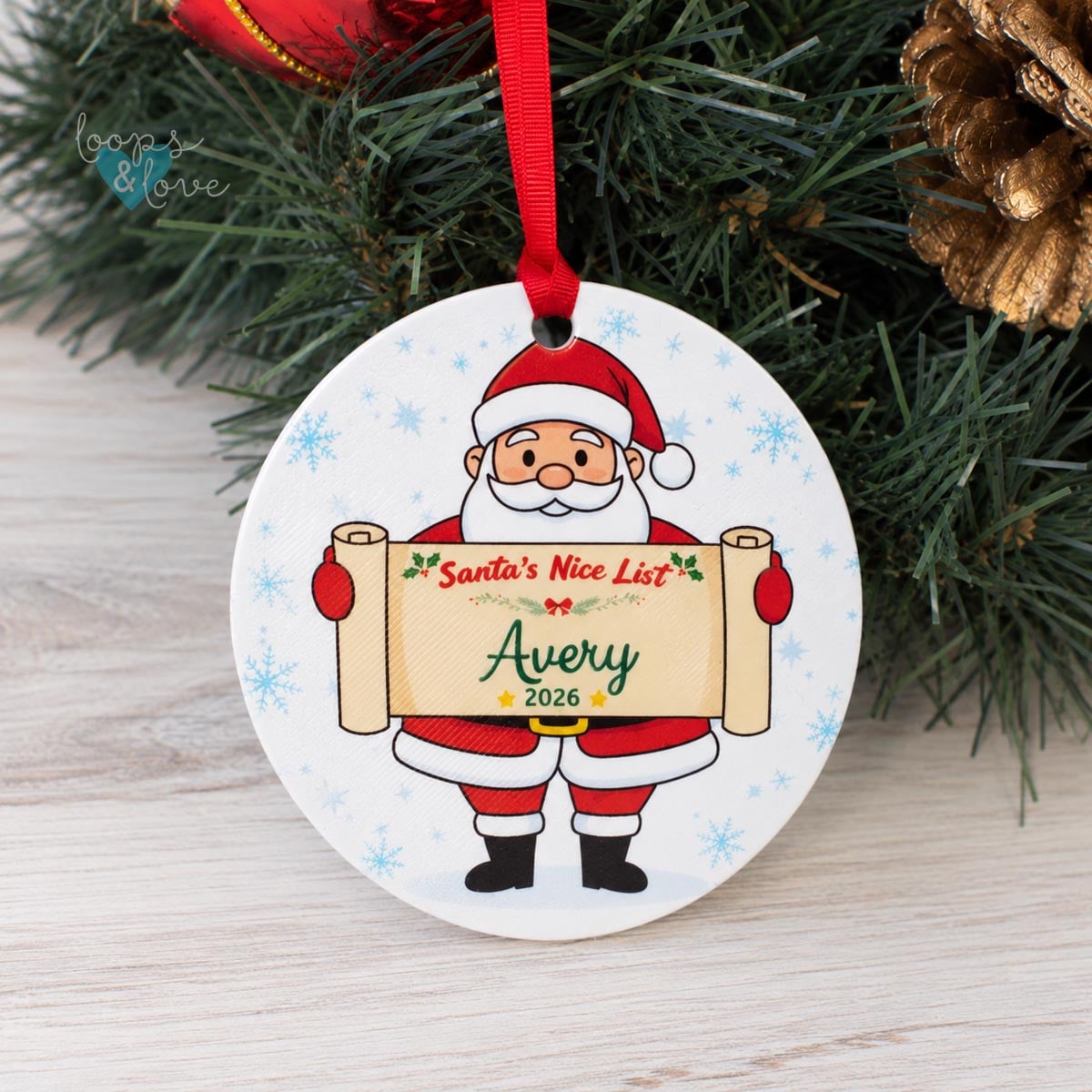
I've been having so much fun experimenting with different projects using my xTool Omni O1 UV printer! With Christmas coming up, I've been working on some personalized Christmas ornaments, and I wanted to share one of my latest creations.
For this project, I combined 3D printing with UV printing to make a cute Santa's Nice List Christmas ornament, complete with a personalized name and year.
I love making personalized gifts, and this was such a fun way to put both of my printers to use! The finished ornament is colourful, festive, and can easily be customized with different names.
Disclosure: I received the xTool Omni O1 from xTool as part of a collaboration. This post may contain affiliate links, which means I may earn a small commission if you make a purchase through my links, at no additional cost to you.
Pin this post to your favorite Pinterest board to come back to it later!
Making the 3D Printed Ornament Blank
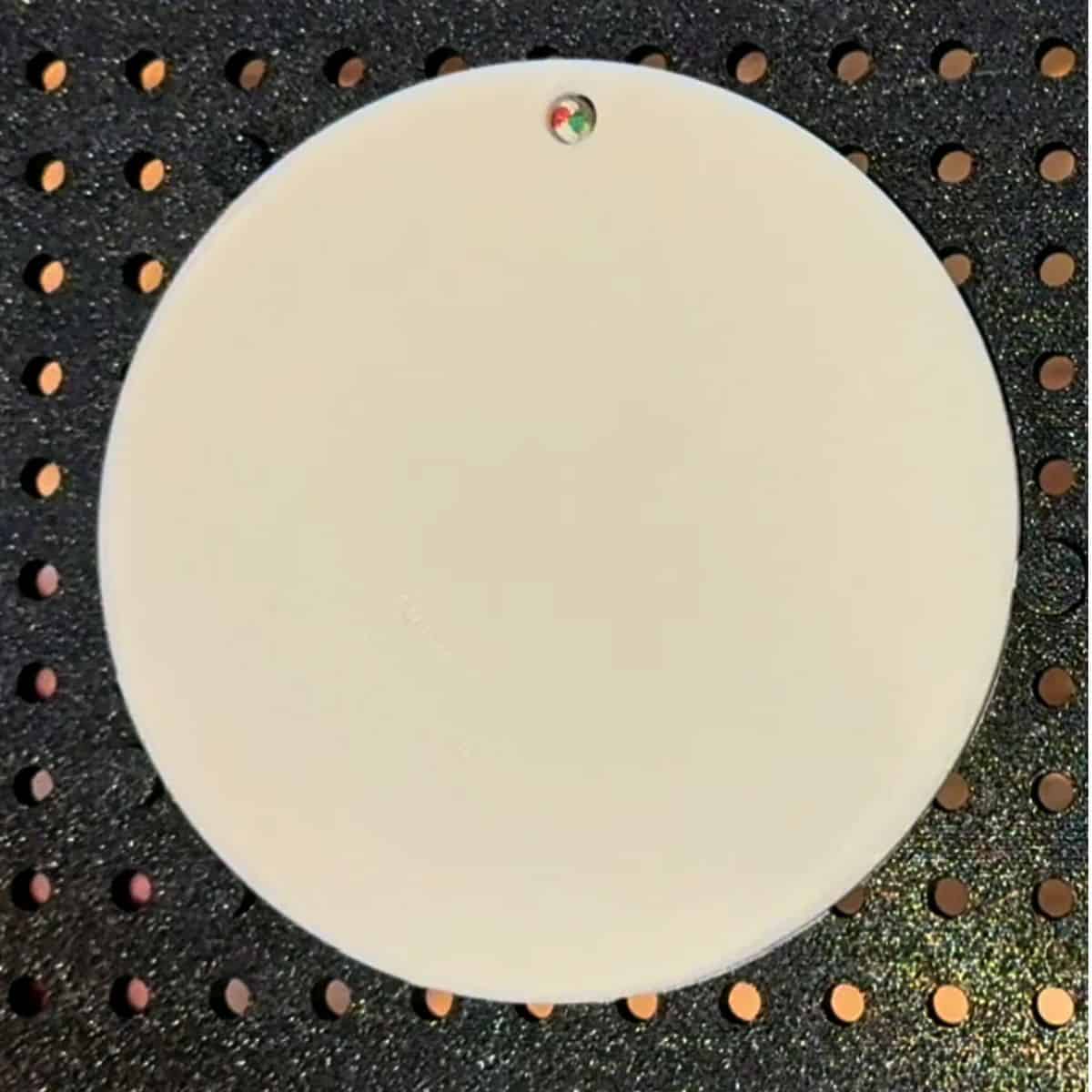
The first step was creating the ornament blank using my Bambu Lab A1 3D printer. I used the Bambu Studio software to create a cylinder shape that measures 3.5" in diameter and 3mm thick and inserted a small hole in the top.
Because I planned to UV print directly onto the surface, I wanted the top of the ornament to be as smooth as possible. I used the ironing feature in Bambu Studio, which helps smooth the top surface of a 3D print. I've been experimenting with different ironing settings to consistently get a smooth finish on my prints. I also sanded the top with a fine sandpaper to make sure the surface was as smooth as possible for printing the design. If you are sanding yours, be sure to wash it after to remove any dust particles before printing.
Creating the Santa's Nice List Design in Canva
Next, it was time to create the ornament design! I love using Canva so I had so much fun putting together this Santa's Nice List themed ornament featuring a cute Santa holding a scroll, snowflakes, and festive greenery and text.
I added the text "Santa's Nice List" and "2026" onto the image in Canva, however, I did not put the name on until I brought the image over to xTool Studio.
One of the things I like about creating these designs in Canva is how easy it is to customize them. Once the main design is finished, I can change the name and year to make a personalized ornament for someone else.
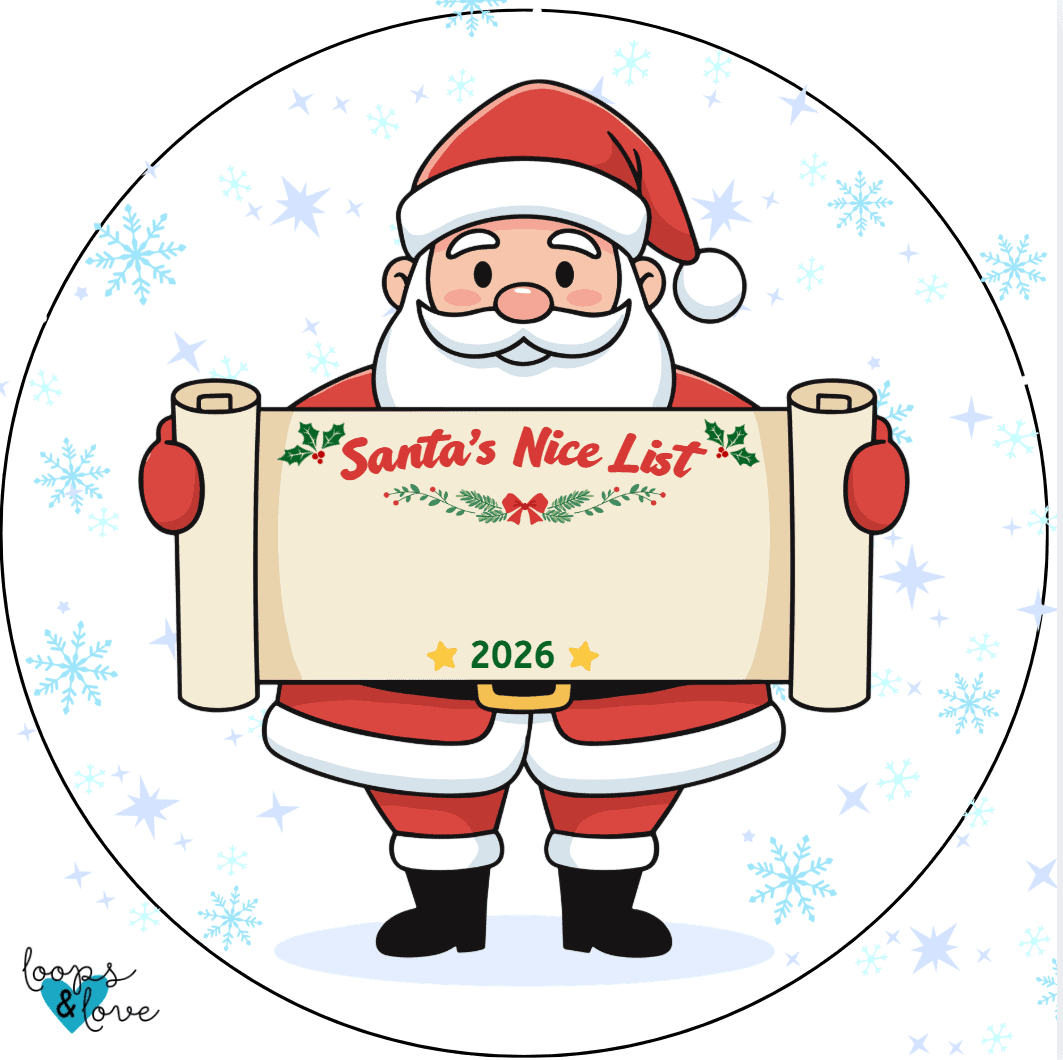
Note that the black circle around the image was a guide for me when designing the ornament so I could have an idea of how this design would look printed on a circular surface. This will not show up in the UV print.
After finishing the design, I saved it as a .png file and imported it into xTool Studio to prepare it for printing.
Preparing the Ornament for UV Printing
With the ornament blank printed and the design ready, it's now time to get ready for UV printing!
The first step after opening xTool Studio and connecting to your computer, is to place the object you are printing on inside the printer. I put the ornament blank on the small plate and clicked Scan. Once it's scanned and you have the image of the blank on the screen, clicking the Smart Mask will allow the software to automatically find the print area. This helps prevent over spraying ink on the plate because only the portion of the image that's on the item will print.
From here, it was time to import our Santa's Nice List image file. Once I was finished re-sizing it and adjusting the placement on the circular ornament, I added the name text.
For the text, I wanted something colorful and Christmas-themed without making the design too busy. The name is the main focus, so I chose a dark green font that stands out against the lighter background. Because I added the text on separately in xTool Studio, I was able to make it stand out even more by giving it texture. I raised the name by 0.5mm and gave it round edges just to accent it more and make it more fun to feel.
Printing the Ornament with the xTool Omni O1
One of my favorite things about the Omni O1 is that it can print colorful designs directly onto different materials and objects. I've been enjoying experimenting with printing on my 3D printed projects because it gives me so many more options for adding color and detail than I can do with just filament alone.
For this ornament, I used three printing layers:
- 1 white ink layer to create a base for the design
- 1 colour ink layer to print the Santa illustration, lettering, and other details
- 1 varnish layer to finish the design
I chose a matte finish for this ornament. I've experimented with glossier finishes on other projects, but I really like the look of the matte varnish for these Christmas decorations.
This print took about 15 minutes. I love watching the design come together as the printer adds each layer, wearing the UV safety glasses, of course!
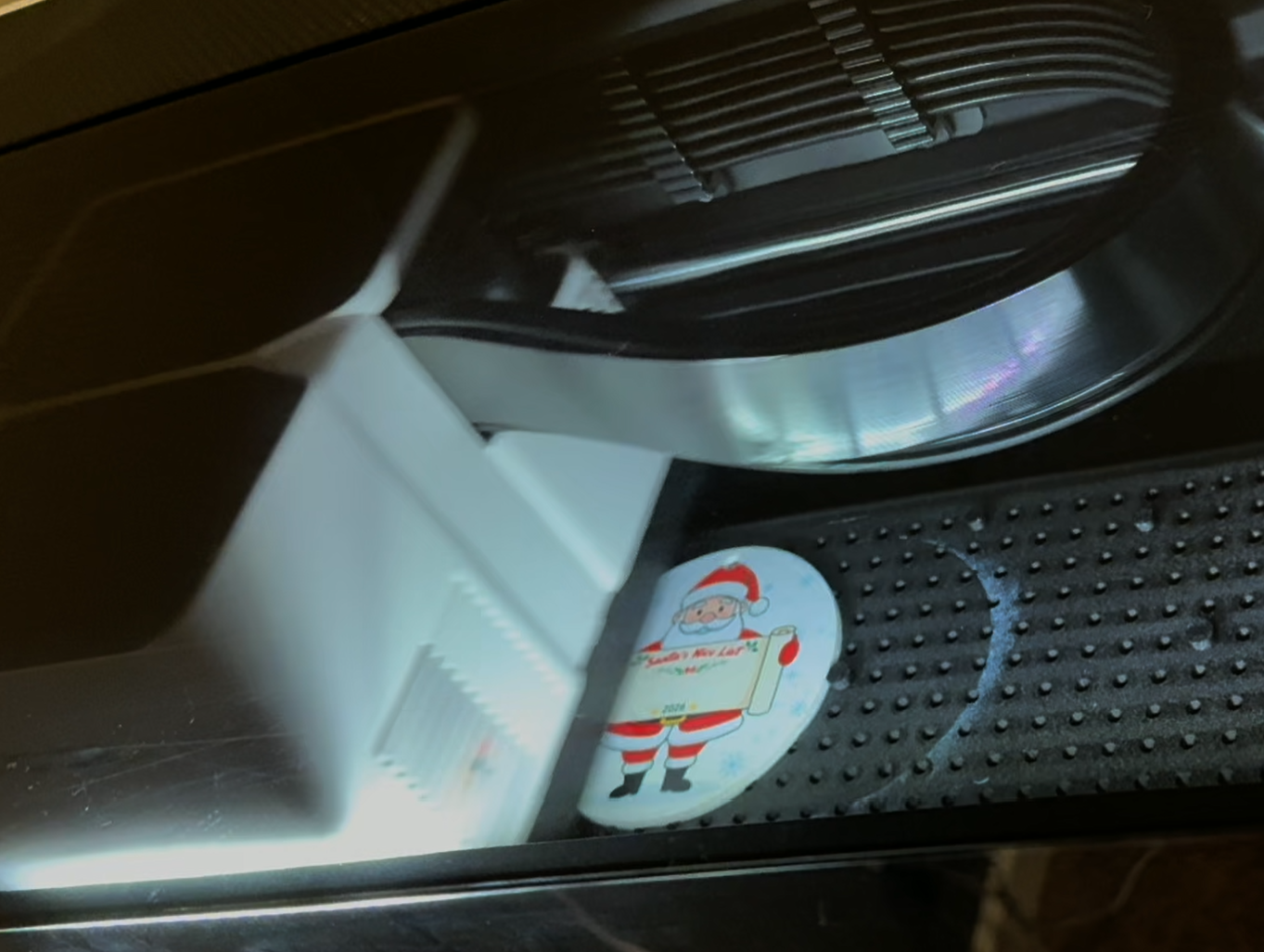
Adding the Finishing Touches
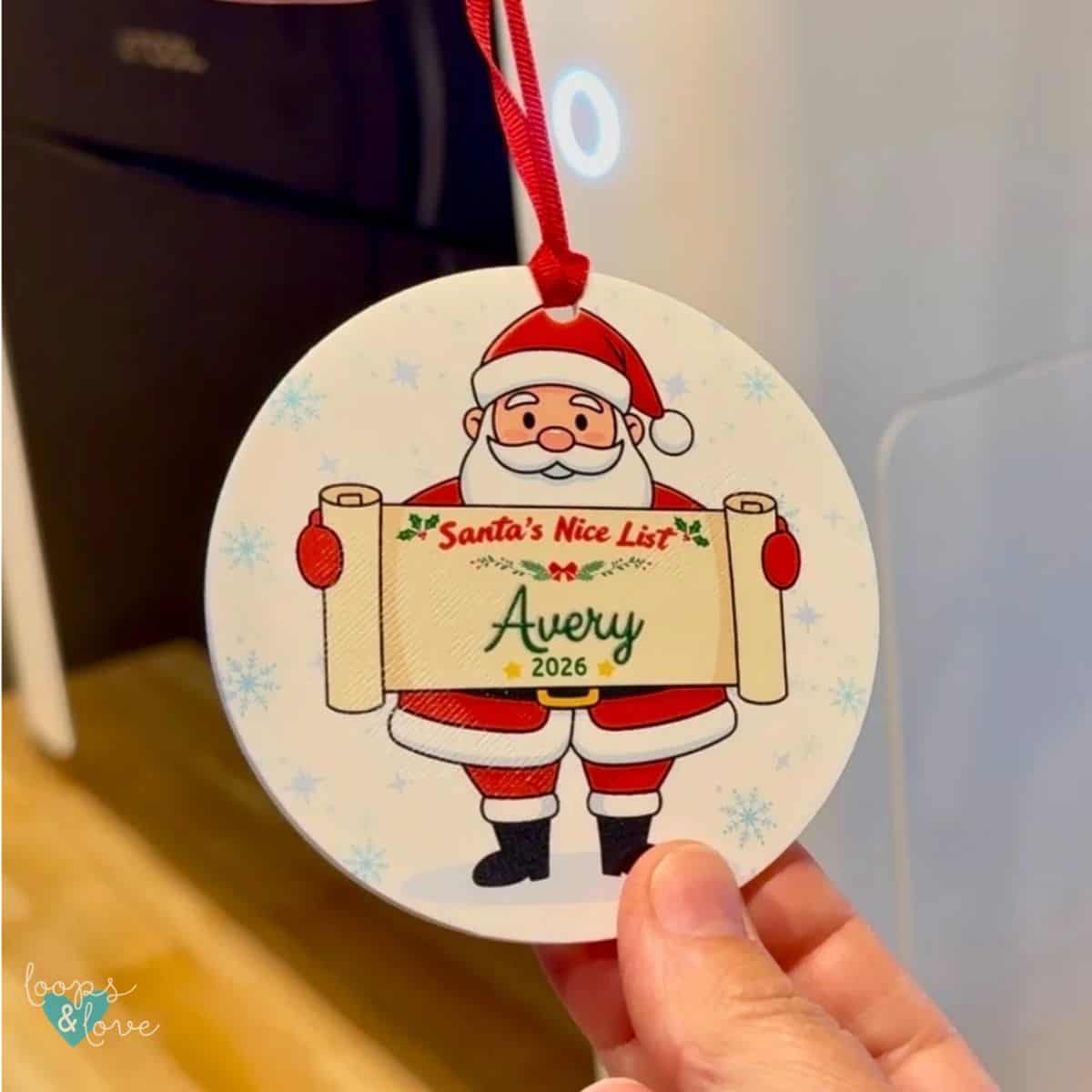
Once the UV printing was finished, I added a red ribbon through the hole at the top of the ornament. And that was it! My personalized Santa's Nice List ornament was ready to hang on the Christmas tree.
I love how the colours turned out, especially the red and green lettering against the lighter background. The personalized name really stands out, and the Santa illustration gives it a fun Christmas look.
The best part is that I can use the same basic design to make more ornaments with different names and years.
More Personalized Christmas Ornament Ideas
This Santa ornament is just one of the Christmas projects I've been experimenting with using my 3D printer and xTool Omni O1.
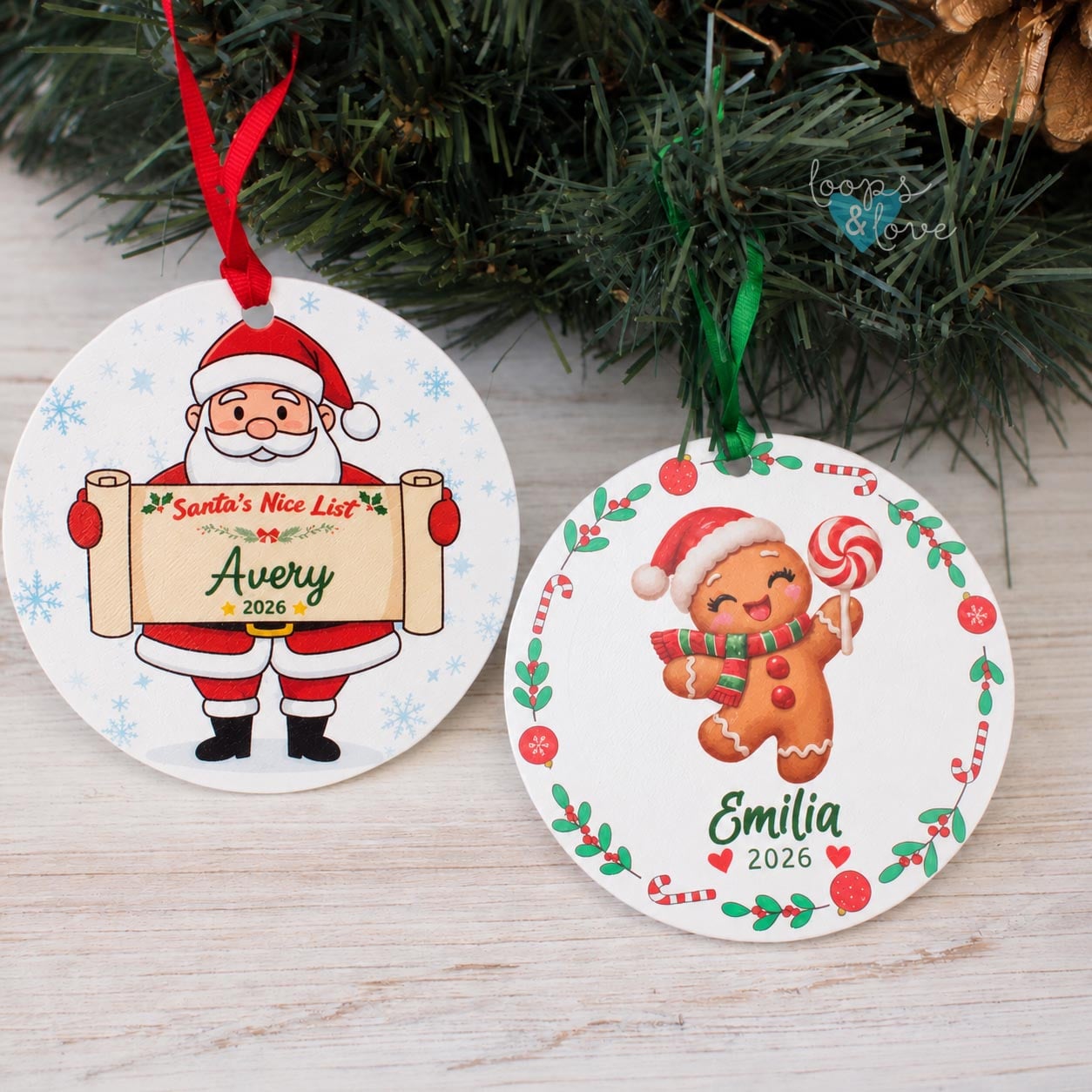
I've also been working on personalized photo ornaments and gingerbread-themed designs. It's been fun trying different shapes, colours, and printing techniques to see what I can create.
I especially like being able to 3D print the ornament bases myself and then use the Omni O1 to add the designs. Combining the two machines opens up lots of possibilities for personalized Christmas ornaments, gifts, and decorations.
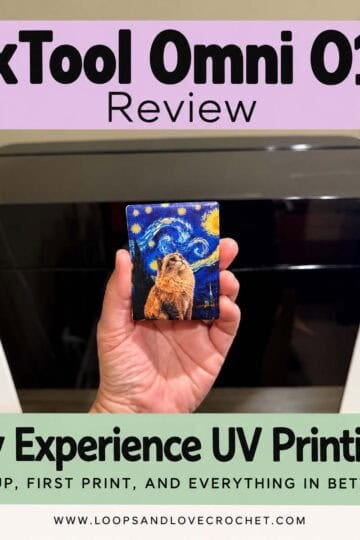
If you're interested in learning more about the xTool Omni O1, be sure to check out my xTool Omni O1 review and setup experience, where I share more about the printer and getting started with UV printing.
I'm looking forward to trying more Christmas projects with it!
**Want to be kept in the loop? Be sure to like Loops and Love Crochet on Facebook and join the Loops and Love Crochet Group! Don't forget to follow @loopsandlovecrochet on Instagram! Remember to tag Loops and Love Crochet when you post your finished projects on social media! I'd love to see them! **